If your WordPress analytics data feels unreliable lately, you’re not imagining it. GA4 tracking, which runs purely client-side, has been unreliable since I started in marketing back in the 2010s.
Ad blockers, Safari’s privacy limits, and third-party cookie rules are quietly cutting holes in your Google Analytics reports.
Server-side tracking solves most of this. It sends data from your server, not the visitor’s browser, straight into Google Analytics 4 (GA4) or other analytics and ad networks.
Let’s look at how you can set up GA4 server-side tracking for WordPress, so you get the most accurate data possible.
Why WordPress Sites Need GA4 Server-Side Tracking
Traditionally, client-side tracking usually depends on JavaScript scripts that fire tags in a user’s browser.
This method is quite outdated now. It might have worked fine when the world wasn’t so worried about data privacy, but those days are long gone now.
Safari and Firefox actually block third-party cookies by default, so none of the data you get from those browsers will be accurate. For a while, it looked like Chrome would be moving in the same direction.
Even if your browser allows third-party cookies, your users might not approve them.
Every time a visitor fails to interact with your cookie banners or decides to decline cookies, another conversion disappears. The same is true if they use an ad blocker.
Server-side tagging is a lot more dynamic.
Data is processed on your server, or in the backend of your website, before it’s sent to Google Analytics and anywhere else you need it to go.
This means it appears as first-party and can’t be easily blocked by factors that influence the browser.
Benefits of Server-Side Tracking in WordPress
If you decide to change over, the difference is often obvious almost immediately.
Page speed improves because fewer scripts load on the front end. Reports align more closely with your ad platforms because every platform is getting accurate and complete data.
And finally, because user data passes through your own domain first, you have more control over user privacy and compliance.
You can remove sensitive information or even enrich your data depending on your needs, making it easier to be compliant with regulations like GDPR.
How Server-Side GA4 Tracking Works
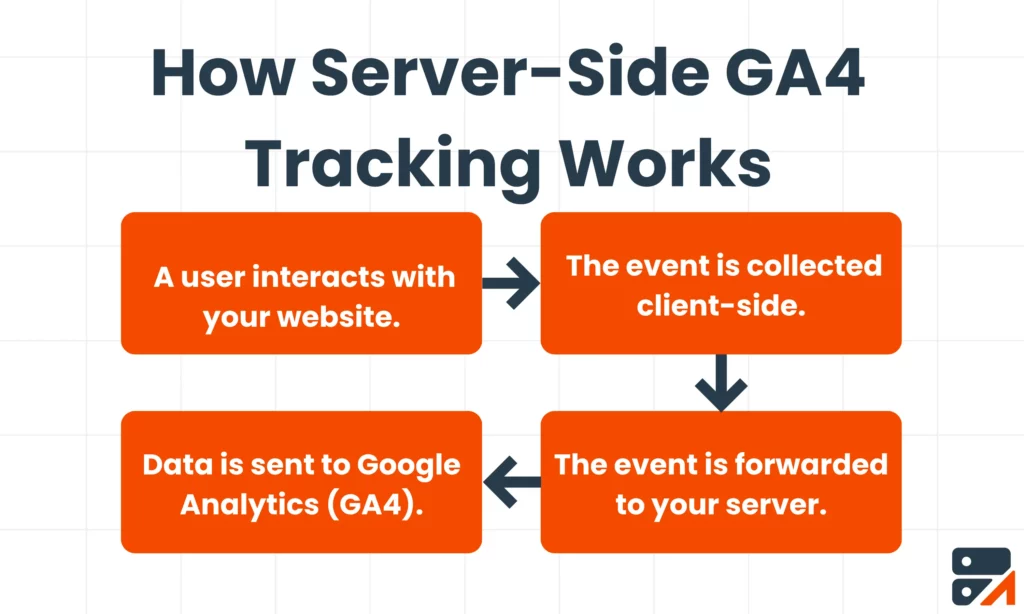
If you do not have a technical background, GA4 server-side tracking for WordPress can seem quite complicated. But a broad-level overview of it can make the concept easier to understand.
Here’s the short version:
- A visitor interacts with your site, maybe views a product, or completes checkout.
- The event is collected client-side by your WordPress site or plugin.
- The event is forwarded to your server (or tagging server).
- Your GTM Server Container or endpoint sends it to Google Analytics using the Measurement Protocol.
This kind of setup can handle far more than GA4.
It can also feed the same conversion data to your ad networks. Some of the most common examples I see include Meta Pixel, TikTok Pixel, Snap Pixel (Snapchat), and the Pinterest Tag.
This means that your ad campaigns, which usually adjust based on data-driven algorithms, are as optimized as possible.
Setting Up GA4 Server-Side Tracking via GTM
If you already use Google Tag Manager, you can extend it to include server-side tracking without rebuilding your existing tags.
First, create a GTM Server Container.
In the GTM Admin panel, click ‘Create Container’ and choose ‘Server’. This gives you a separate container you can host yourself or through a managed provider.
Next, deploy a tagging server. Most developers use Google Cloud Run or App Engine.
Point a subdomain that makes sense, such as ‘track.yourdomain.com’, to that server through DNS and make sure it uses HTTPS.
You can then link your web container to the new server container. Open your GA4 configuration tag and add a field named ‘server_container_url’.
Then point it to your subdomain. This tells GTM to send data through the server first.
Inside the server container, add a GA4 Client. It receives forwarded events and relays them to GA4. Once saved, publish both containers.
To verify the setup, you can open GA4’s Real-time report while running GTM Preview. You should see events appear almost instantly. If you don’t, check your API secret and DNS configuration.
If your website is relatively small, sometimes you’ll need to create the events yourself. I always make sure to do something on the website before I decide if the tracking has been set up correctly.
Using a WordPress Plugin Instead
If none of the above made sense to you, it’s no surprise. Using server-side GTM (or SGTM) is quite a technical process.
You probably need some knowledge about backend development, if not for the setup, then for long-term maintenance and troubleshooting.
Fortunately, there are options out there if manually deploying a GTM server feels daunting.
You can still get server-side tracking through a WordPress plugin or a managed platform like Traculo.
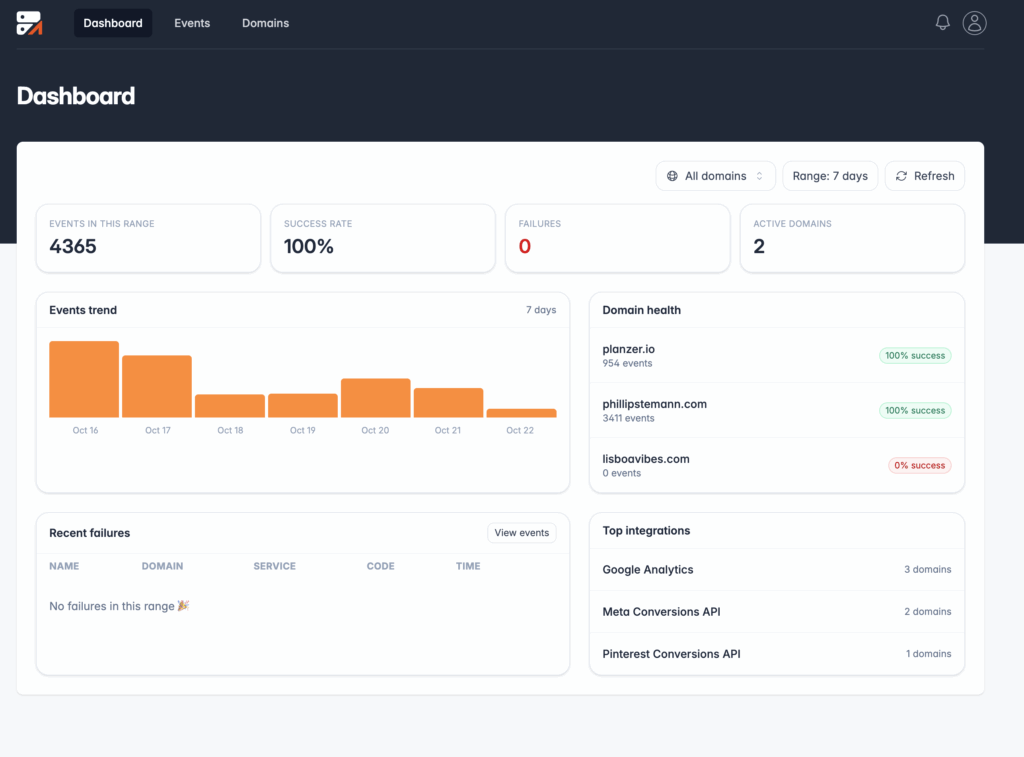
When it comes to Traculo specifically, setup is incredibly easy.
All you need to do is install the plugin, sign up, and you’re all set to go. If you run into any problems, we provide chat and email support.
No custom code required, no separate GTM infrastructure, and no cloud bills to manage.
On top of the easy setup, Traculo takes care of all the API maintenance and sends real-time notifications when something goes wrong so that you aren’t taken off guard later.
What Events to Track on a WordPress Site
You do not need to record everything. Too much data might actually do more harm than good.
Instead, make sure that you are tracking what matters the most. For a regular website, this usually consists of core events like:
-
page_viewfor every page load -
scrollorengagement_time_msecfor visitor activity -
form_submitfor lead forms -
outbound_clickfor external links
If you run an e-commerce site, you probably need to track things like:
-
view_item(product view) -
add_to_cart(add-to-cart event) -
begin_checkout(checkout start) -
purchase(transaction completed)
Each ecommerce event should include a transaction ID, value, currency, and an items[] array with product details.
Why Use a Custom Domain for Server-Side Tracking
Safari and other WebKit browsers delete third-party cookies quickly.
If your GA4 tag fires from googletagmanager.com, its cookie might last only a week.
I always try to use a subdomain based on your usual domain name, like ‘track.yourdomain.com’, because it means that those cookies are first-party and usually persist much longer.
If you switch to using server-side tracking but still notice a bunch of missing conversions in GA4 and Google Ads, then try to make this change and see if your missing data is restored.
It also keeps control of data in your hands, since everything passes through your own domain before reaching Google’s servers.
The Hybrid Approach: Client-Side + Server-Side
You don’t need to go all in on client-side or server-side tracking. If you want to transition from one to the other, it is possible to run both methods.
To do this, keep your key conversions through your server, using a plugin like Traculo that provides free tracking up to a certain number of events. Everything that isn’t important can stay client-side.
You can then compare how your data changes and see if server-side has more conversions, before removing redundant browser tags.
If you do decide to do a hybrid approach, make sure that you watch out for duplicate data.
Wrap-Up
GA4 server-side tracking for WordPress isn’t impossible with no technical knowledge. You can ensure that your data is accurate and that you maintain data privacy, all by simply installing a plugin like Traculo.
This way, you don’t need to manage a GTM server yourself. Traculo handles everything from validation to delivery, and even retries if data doesn’t go through the first time.
Sign up for Traculo to get started with a 14-day free trial.
FAQ
Do I still need the web tag with GA4 server-side tracking?
Yes, you still need the web tag because events are first captured client-side before routing through your server container or endpoint.
Will GA4 server-side tracking bypass ad blockers and Safari limits?
Yes, GA4 server-side tracking usually bypasses ad blockers and Safari limits since data comes from your own domain, not a third-party script.
Can I use GA4 server-side tracking on any WordPress site?
Yes, GA4 server-side tracking can be used on any WordPress site that wants accurate conversion and engagement data.
How much does GA4 server-side tracking cost?
GA4 server-side tracking is free if you host your own GTM server. Managed platforms like Traculo offer free plans for limited monthly events.