- Server-side tracking means a server, not the visitor’s browser, sends your events to GA4, Meta and other platforms. The browser still reports what happened; the server decides what leaves your site.
- It helps most for conversions that matter to ad platforms and reports: purchases, leads and sign-ups. It does not fix consent, bot traffic or a badly planned event list.
- There are three routes on WordPress: a server-side Google Tag Manager (sGTM) container, a plugin or service that forwards events, or code you write yourself. They differ mainly in who runs the server.
- If you have little ad spend, few conversions or nobody to maintain it, you may not need it yet. This guide says when to wait.
Last updated: 7 October 2026
Server-side tracking means your own server, or a service you pay, sends tracking events to Google Analytics, Meta, TikTok and similar platforms. The visitor’s browser does not send them. That is the whole idea. Everything else in this guide is plumbing and trade-offs.
This is the pillar page for our server-side series. It explains the concept, what changes, what you gain and lose, and which of the three WordPress routes to pick. The deeper how-tos live in their own articles, and the last section maps them.
What server-side tracking is
In classic client-side tracking, a script in the visitor’s browser watches what happens and sends a request straight to each vendor: one to Google, one to Meta, one to TikTok. Each vendor’s script runs on your page, reads cookies, and phones home.
In server-side tracking, an event reaches a server first. The server then forwards it to the vendors. Google describes server-side tagging as a way to measure user activity wherever it happens, and lists three aims: better page performance, more detailed privacy controls and better data quality.
The word “server” hides two different cases, and mixing them up causes most of the confusion:
- The browser still sends a hit, but to you. This is how server-side GTM usually works. A small tag in the page sends the event to a subdomain you control, and the server container fans it out to vendors.
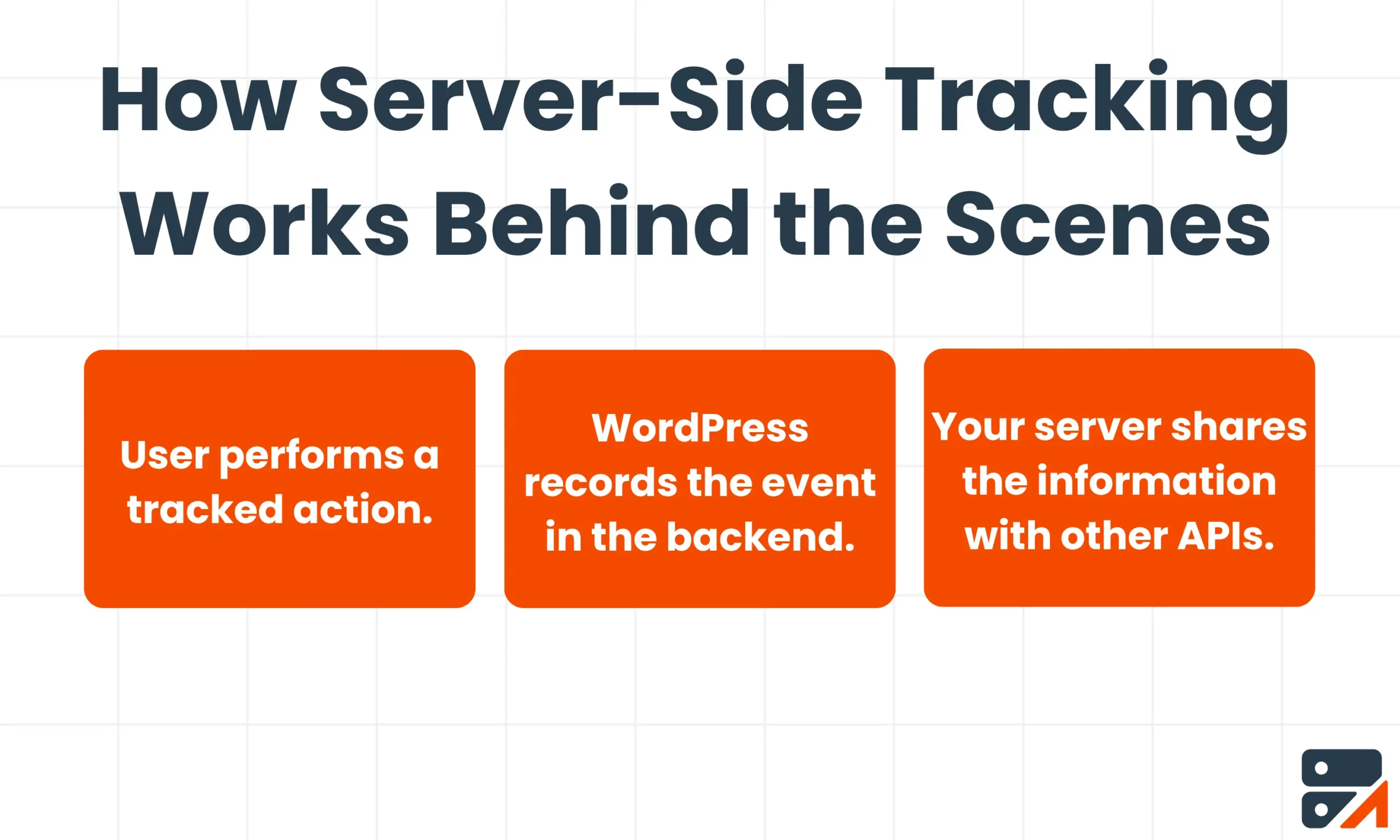
- The event never touches the browser. A WordPress hook fires when an order is paid or a form is saved, and your backend or a forwarding service sends it. The visitor’s browser is not involved at all.
The second case is the one that survives a closed tab, a blocked script or a payment redirect. The first case is easier to retrofit onto an existing tag setup. Many sites end up using both.
What actually changes: browser versus server
| Client-side (browser) | Server-side | |
|---|---|---|
| Who sends the request | The visitor’s browser, once per vendor | A server, once per vendor, after receiving or creating the event |
| What can stop it | Blockers, closed tabs, slow scripts, consent tools, browser storage limits | Server errors, wrong credentials, rejected payloads, missing identifiers |
| Where you can edit data | Only inside the browser, before sending | On the server: remove fields, hash emails, rename events |
| What you can see afterwards | Whatever the browser console and vendor reports show | A log of every request and each vendor’s response, if you keep one |
| What it costs | Nothing extra, but more scripts on the page | A server, a plugin or a service, plus someone’s time |
The failure moves, it does not disappear. A blocked script is silent; a rejected API call is at least a response you can read. That alone makes problems easier to find. If your starting point is “my numbers look wrong”, our piece on why WordPress analytics data goes missing lists the causes before you pick a fix, and client-side vs server-side tracking in WordPress compares the two approaches tool by tool.
What you gain, what you lose, what stays the same
What you can gain
- Conversions the browser never saw. A payment gateway that redirects away, a webhook that confirms an order later, a lead marked as qualified in your CRM: a server can report these. A browser tag cannot.
- Control over the payload. You choose which fields are sent to which vendor. Names and emails can be hashed or left out before anything leaves your infrastructure.
- Longer-lived first-party cookies. WebKit’s tracking prevention page says Safari deletes cookies created in JavaScript, and other script-writable storage, after 7 days without user interaction. It does not apply that general cap to cookies set in first-party HTTP responses. A server that sets the cookie can therefore keep a visitor recognisable for longer.
- A record of delivery. You can see what was sent and what the vendor answered.
Read that cookie point with care. The same WebKit page says cookies set in responses can still be capped at 7 days when a request is detected as CNAME cloaking or third-party IP cloaking. How your tracking subdomain is wired to the server matters, so test it on Safari rather than assuming. We cover the details in the planned Safari ITP and WordPress cookies guide.
What you can lose or complicate
- Browser context. A server only knows what it is told. Scroll depth, clicks and on-page behaviour still start in the browser. Click identifiers such as
gclidand the Meta browser cookies have to be captured on the page and passed along. - Simplicity. Two paths can double count. If the same purchase arrives from the pixel and from the server, the platform needs a shared event ID to merge them. Meta CAPI deduplication with event_id explains the rule.
- Money or time. Someone hosts, monitors or pays for something. The next sections put numbers on it.
What stays the same
- Consent. Moving the sender does not change whether you may collect the data. If your visitor has declined a purpose, a server-side hit for that purpose is still a problem. See Consent Mode v2 on WordPress and whether server-side tracking changes your consent duties for the details.
- Bots and junk. A server forwards what it is given. Spam form submissions arrive just as cleanly as real ones unless you filter them.
- Attribution limits. If a visitor never carried a click ID to your site, no server can invent one.
The three ways to do it on WordPress
Every setup falls into one of three groups. They are not ranked by quality. They answer “who runs the server?” differently.
Route 1: a server-side Google Tag Manager container
You create a server container in Tag Manager, host it, and point a subdomain such as metrics.example.com at it. A web container in the browser sends events to that subdomain. Inside the server container, clients receive the hits and tags forward them to vendors. The sGTM explainer walks through each piece.
Google’s Cloud Run setup guide puts one server at about $45 a month (1 vCPU, 0.5 GB memory) and recommends at least two instances to reduce the risk of data loss during an outage. That is roughly $90 a month for a production setup, before a preview server. The guide also offers App Engine and manual hosting as alternatives. Managed hosts exist if you would rather not run the cloud project; sGTM hosting versus a plugin compares the costs.
Choose it when you already live in Tag Manager, need its tag templates, or have a developer who will own a cloud service. Skip it when you only need to forward a handful of conversions and nobody wants the on-call duty.
Route 2: a plugin or service that forwards events
A plugin watches WordPress for events and hands them to a service, which sends them on from its own servers. You do not host anything. You configure platforms and credentials in a dashboard, then read the delivery results.
Traculo is one example. It uses a WordPress plugin and a domain API key. Events are forwarded from Traculo’s servers to Google Analytics 4 (Measurement Protocol), Meta Conversions API, Google Ads offline conversions, LinkedIn Conversions API, TikTok, Snapchat, Pinterest and Plausible. Each event gets a delivery log entry with the response from every integration. Traculo is not a GTM server host and does not replace Tag Manager for every use. The full comparison is in server-side tracking without GTM.
Choose it when your goal is standard conversions to a known list of platforms, and you want the lowest operating burden. Skip it when you need custom GTM clients, unusual vendors or routing logic that the service does not offer.
Route 3: custom code
You write a plugin or a functions.php snippet that listens for WordPress or WooCommerce hooks and calls each platform’s API with wp_remote_post or a queue. For GA4 that means the Measurement Protocol; for Meta it means the Conversions API.
It is the cheapest in licence fees and the most expensive in attention. You own retries, logging, hashing rules, API version changes and the 3 a.m. question of why Tuesday’s leads are missing. It suits an agency with a maintained internal plugin or a site with one narrow need.

A short decision guide
- Do ad platforms or conversion reports depend on this data? If not, read the next section before spending anything.
- Do you have someone who will maintain code or a cloud service? If not, a plugin or service is the realistic route.
- Do you need GTM tag templates or custom clients? If yes, use an sGTM container. If no, a plugin or small custom code can do the job.
- Do you want to keep your current browser tags while you test? Run both for a few weeks with a shared event ID, then compare totals before you remove anything.
When server-side tracking is not worth it
It is not a default upgrade. Skip it, or wait, in these cases:
- You read traffic reports and run no paid campaigns. Server-side forwarding exists mostly to feed conversion data back to ad platforms and to recover lost events. If you only want pageviews, a lighter analytics setup may do.
- You have a handful of conversions a month. Ad platforms learn from volume. A server will not turn twelve leads into a signal.
- Your browser tracking is broken for basic reasons. Duplicate tags, a page cache serving stale scripts or events firing on the wrong pages should be fixed first. A server forwards bad data faithfully.
- Nobody owns the setup. A server container that no one monitors fails quietly, and then the data is worse than before.
- Consent is unresolved. Sort out what you may collect first. Server-side tracking can only change how events are sent.
- You expect a miracle. No vendor can promise a fixed percentage of recovered conversions, and we will not either. Your own before-and-after test is the only number that counts.
Which events to send first
Do not forward everything. Start with the three to five events that an ad platform or a report actually uses:
- The final conversion: purchase, qualified lead or booked call.
- The step before it: add to cart, begin checkout or form start.
- A stable identifier for each: an order ID or a form entry ID, reused as the event ID.
On WooCommerce this means order status changes, not thank-you page loads. A thank-you page can be reloaded, bookmarked or never reached. An order status change happens once. The planned WooCommerce server-side tracking guide covers purchases, refunds and subscriptions.
How to check any setup works
Whatever route you choose, test in four places:
- The source. Does a test action create exactly one event on your side?
- The vendor’s debug tool. GA4 has DebugView; Meta has its Events Manager.
- The vendor’s response. A request can be delivered and still be rejected. Read the response body, not only the status.
- The totals. After a week, compare orders in WooCommerce with conversions in each platform. They will not match exactly because attribution windows differ, but the gaps should be explainable.
The GA4-specific version of this checklist is in our GA4 server-side tracking guide.
Glossary
- Client-side
- Code that runs in the visitor’s browser.
- Server-side
- Code that runs on a server you or a vendor control.
- Measurement Protocol
- Google’s HTTP interface for sending events to GA4 from a server. Google says it is meant to augment automatic collection, not replace it.
- Conversions API (CAPI)
- An ad platform’s server endpoint for conversions. Meta, LinkedIn, TikTok, Snapchat and Pinterest each have one.
- sGTM
- Server-side Google Tag Manager: a server container that receives events and forwards them through tags.
- Event ID
- A unique value attached to an event so the same conversion sent twice can be merged.
- Deduplication
- A platform treating two copies of one event as one.
- First-party cookie
- A cookie set by your own domain, as opposed to a vendor’s.
- ITP
- Intelligent Tracking Prevention, Safari’s set of storage limits.
- Click ID
- A parameter added to ad clicks, such as
gclidorfbclid, used to tie a conversion to a click. - Hashing
- Turning an email or phone number into a fixed string with a one-way hash function before sending, so the raw value is not transmitted.
Where to go next
The series covers the pieces in more detail. Pick the one that matches your next job:
- Understand the Google side: what sGTM means, then how GA4 receives server-side events.
- Work out the cost: server-side tracking without GTM and the upcoming hosting cost comparison.
- Set up Meta: Meta Conversions API for WordPress and event_id deduplication.
- Diagnose missing data: why WordPress analytics data goes missing.
- Choose between approaches: client-side vs server-side in WordPress.
Frequently asked questions
Is server-side tracking necessary for Google Ads?
No. Google Ads works with browser tags. Server-side routes help when browser data is incomplete, for example when a conversion happens after a redirect or off the site, but they are an option, not a requirement.
Does server-side tracking replace the Meta Pixel or the GA4 tag?
Not necessarily. Many setups keep the browser tag for page context and add a server path for key conversions. If both send the same event, give them a shared event ID so the platform counts it once.
Does server-side tracking change what I need consent for?
No. It changes where the request is sent from, not whether you are allowed to collect the data. Apply the same consent choices on the server path as in the browser, and get legal advice for your situation.
Will it make my site faster?
It can, if it removes vendor scripts from the page. A server-side GTM setup still needs a small tag in the browser, so measure your own pages before and after rather than assuming a gain.
Related reading
- What is server-side Google Tag Manager (sGTM meaning)
- GA4 server-side tracking for WordPress
- Server-side tracking without GTM on WordPress
- Client-side vs server-side tracking in WordPress
- Why is your WordPress analytics data missing?
- Meta CAPI deduplication: event_id explained
If the plugin route fits, see how Traculo’s server-side event tracking works. You can start on the free plan with 10,000 events a month; paid plans start at $12 a month for 10K events (see pricing).