Your website analytics dashboard not lining up with your ad platform data is a common issue. If you rely on client-side event logging, tracking data loss is especially common. But why is your WordPress analytics data missing? And how can you fix the issues?
The most common issues I have come across in the many years that I have worked as a web developer include:
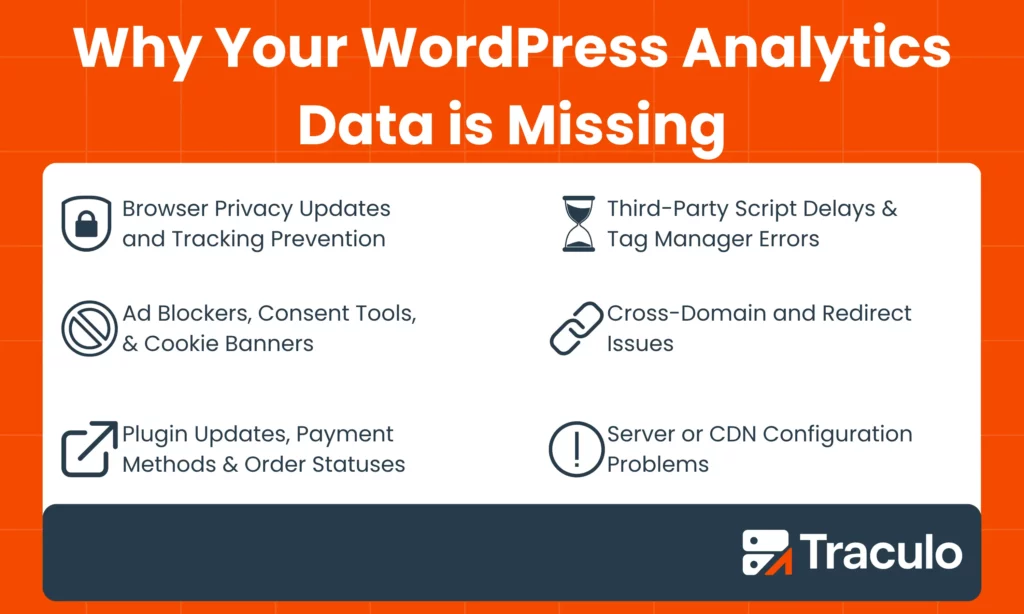
- Browser Privacy Updates and Tracking Prevention
- Ad Blockers, Consent Tools, and Cookie Banners
- Plugin Updates, Payment Methods & Order Statuses
- Third-Party Script Delays and Tag Manager Errors
- Cross-Domain and Redirect Issues
- Server or CDN Configuration Problems
The simplest way to ensure accurate and secure data transfer to your ad networks is to switch to server-side tracking. You can set this up yourself if you have the technical knowledge, or you can use WordPress plugins like Traculo.
6 Reasons Why Your WordPress Analytics Data Might Be Missing
Let’s go into the six main reasons why tracking data loss usually happens on websites.
1. Browser Privacy Updates and Tracking Prevention
Most client-side tracking relies on browser cookies or third-party scripts. The issue with this is that modern browsers may block a lot of that data.
Safari’s Intelligent Tracking Prevention (ITP), Firefox’s Enhanced Tracking Protection (ETP), and Chrome’s new Privacy Sandbox all limit or expire cookies faster than before.
They all have good intentions to increase user privacy and data security, but for website owners, they result in missing sessions, incomplete events, and unreliable attribution.
2. Ad Blockers, Consent Tools, and Cookie Banners
Ad blockers and consent management tools stop analytics before they even start.
Misconfigured cookie banners also prevent Google Analytics 4 (GA4), Meta Pixel, or TikTok Pixel events from firing at all. Even if you set your cookie banners up correctly, users might opt out or fail to click on the banner at all.
3. Plugin Updates, Payment Methods & Order Statuses
WordPress is very flexible. There are plugins for almost everything out there, created by a variety of providers. But that is a risk as much as it is a strength.
I have seen even the most popular plugins, like WooCommerce, lose data because of an update, or because something like a payment gateway has changed.
In e-commerce plugins, this is often because a redirect, like the kind that happens at checkout, negatively affects attribution. In form plugins, pop-up builders, and automation tools, the issues often come from updates that change event names.
Caching and optimization plugins can also exacerbate your data loss by stripping or delaying tracking scripts.
4. Third-Party Script Delays and Tag Manager Errors
Google Tag Manager (GTM) is a great way to track events, but it runs on the client side.
If your scripts load too late, or if caching and minifications alter their order, you risk losing the events. You won’t even get an error message to alert you of the tracking failure.
5. Cross-Domain and Redirect Issues
Any time your site redirects users to another domain, there is a possibility that you will lose attribution data.
You need cross-domain tracking so that your ad networks and analytics sites, like GA4, don’t treat each redirect like a brand new session.
If you fail to do this, you won’t be able to track conversions, and there will be no credit for your marketing campaigns to consider.
6. Server or CDN Configuration Problems
Sites can block their own tracking, even if they are well-optimized.
Content Delivery Networks (CDNs) like Cloudflare, or performance tools like LiteSpeed, can block analytics requests or serve outdated scripts from their caches.
If your caching is misconfigured, query parameters may also be compressed or even stripped from tracking URLs.
Why WordPress Sites Get Hit Worse
In my time fixing these issues for effective marketing, it’s become clear to me that WordPress sites experience tracking data loss far more often than other CMSs.
This is largely because WordPress sites rely heavily on plugins and front-end scripts. As we mentioned, both of these are major sources of data loss.
Each plugin you add will increase complexity with more caching optimization and minification, all of which can interfere with your tracking tags.
These additional factors only add to the browser privacy rules that all websites already struggle with.
Why Tracking Data Loss in WordPress Matters
So, why should you care? Is it really such a big deal if some of your WordPress analytics data is missing?
These numbers provide insights to improve your ROI.
Ad networks like Google Ads, Meta, LinkedIn, and many others can use your event data to optimize their campaigns. This means they perform better, and you end up spending less for better results.
On top of that, your data gives you information about how users experience your website and gives you indications about where there may be issues in their journey.
How to Fix Tracking Data Loss in WordPress
Fixing your missing data is simple in most cases. Here are the steps I recommend:
1. Audit Your Tracking Setup
Start by confirming if your events are actually firing.
Many people like to use tools like Tag Assistant, Meta Pixel Helper, or their browser’s network tab.
If nothing appears when using these tools, the problem is likely a script order issue, a blocked tag, or a consent banner.
The first step is to clear your cache and test again.
2. Review Analytics Settings & Order Statuses
Next, you’ll want to check your analytics tools.
Certain analytics tools allow you to specify which events you want to track and configure them. You need to make sure that this is done correctly.
In some cases, your event triggers might not be connecting to your analytics tool correctly. For example, your form submissions might not be tagged as conversions.
Double-checking your setup can rule out these kinds of issues.
3. Move Key Events Server-Side
Server-side tracking allows you to work around any browser behavior. You record and store all events on your servers before sending them to the relevant platforms.
Doing this means you bypass ad blockers, privacy filters, and even JavaScript timing issues.
Setting this up requires you to work with APIs, and each integration will have a slightly different process, so make sure to check out the individual documentation if you are using a mixture of Google Ads, Meta, TikTok, etc.
4. Use a Reliable Tracking Platform
For most marketing teams, setting up server-side tracking is incredibly complex and requires long-term technical maintenance that they just don’t have the skills for.
That’s why tools like Traculo exist.
Traculo centralizes all of your event data, validates it, enriches it with additional information, and then automatically sends it to every integration you connect.
No technical maintenance required.
It provides all the benefits of server-side tracking, like working around cookie consent and ad blockers, while handling data securely, ensuring that you are GDPR compliant.
Since the plugin is very lightweight and shifts the load from your front end, you end up with better website speeds, too.
All you need to do is sign up and get started.
5. Check Server and CDN Settings
If your tracking setup is still failing, it might be your infrastructure blocking your analytics requests.
The first step, again, is to clear any tracking files from your CDN cache.
If that doesn’t work, review any caching rules to make sure that they aren’t stripping query parameters or serving outdated scripts, and to find out how to alter the rules if required.
In the same way, you should check your security settings to confirm if your tracking domain is blocked and to allow it.
Also, double-check if security headers are blocking your tracking scripts using a tool like SecurityHeaders.com. If necessary, you can add your analytics domain to your script-src directive.
6. Test and Compare Results
Once everything is live, it’s a good idea to compare your results to your old analytics data.
You will likely see a drastic increase in tracked events like conversions. Remember that this is not because of improved performance, but because you are able to see all your data.
Wrap-Up
If your WordPress analytics data is missing, it may be a result of browsers reassessing their privacy policies, other plugins, or issues with front-end tracking.
This can quickly become a problem in fields like marketing, where ad networks depend on this information to optimize campaigns.
Luckily, it’s easy to fix tracking data loss on WordPress.
You don’t need a technical background at all. Tools like Traculo make it easy to avoid issues related to client-side tracking, and sharing across various networks is automated, removing any maintenance requirements on your part.
If this sounds like the tool for you, sign up for Traculo today to start your free trial.
FAQs
What does it mean if your analytics are not showing?
If your analytics are not showing, it probably means your tracking scripts aren’t firing. Check for any blocked tags, misconfigured IDs, or caching plugins that delay events.
How to handle missing data in data analytics?
To handle missing data in data analytics, figure out where the issue is coming from: the browser or the server. Often, you need to move critical events server-side to ensure you capture as much data as possible.
Why is tracking data loss common on WordPress?
Tracking data loss is very common on WordPress because it relies on multiple plugins, caching layers, and front-end scripts. Each layer means there are more chances for your tracking to break.